StoryScroll

The uno23.com user manual, chapter by chapter

Every chapter of the manual as a short scroll-story: the app's own screens with the tap that gets you there, and the manual's own sentences beside them. Read one in your language, then open the same chapter inside the app.

24 chapters · 48 documents

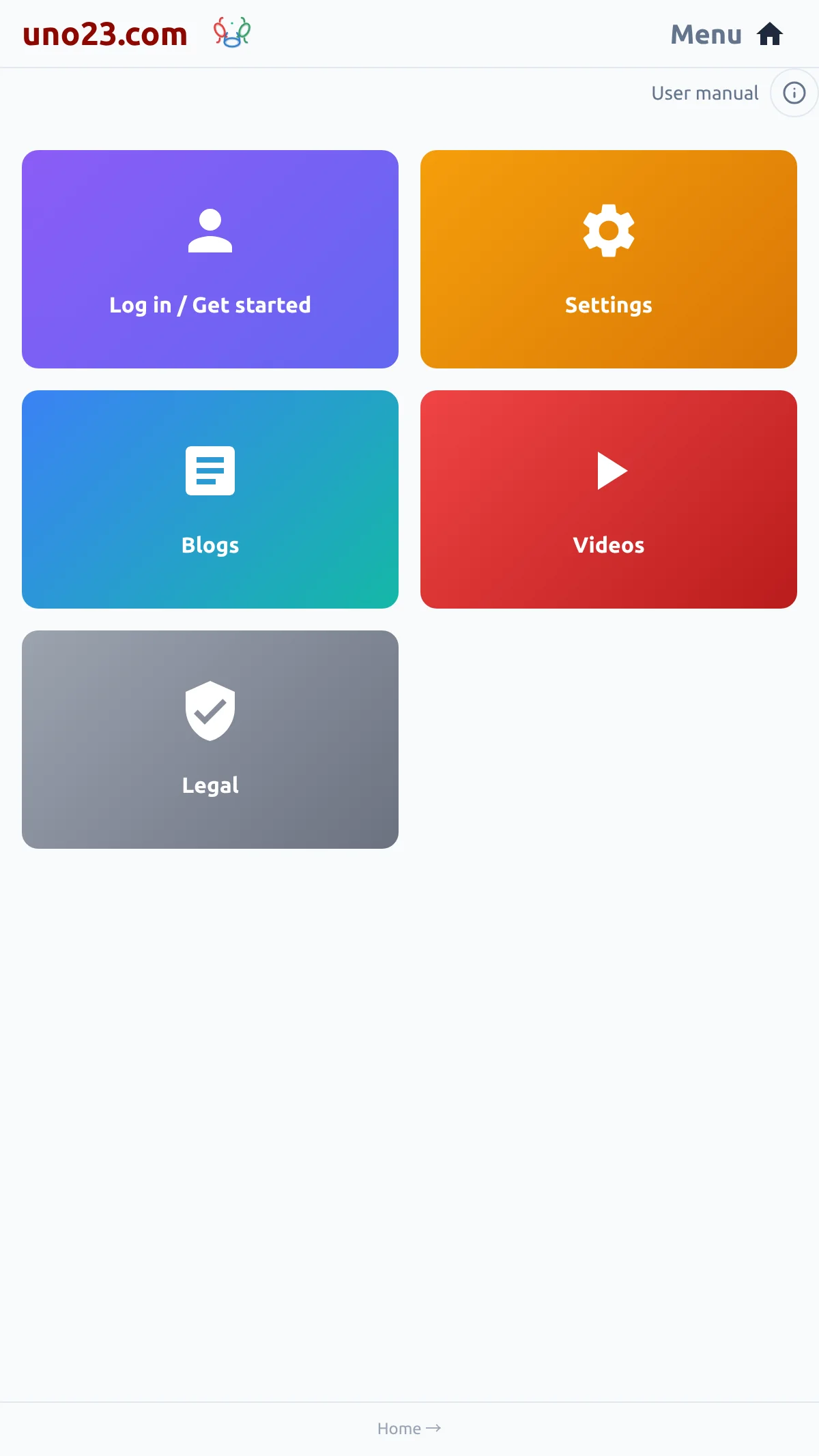
Getting Started πŸš€ β€” a screen from the uno23.com app

Getting Started πŸš€

The quickest way to begin: create a login, choose your two languages, and let the card at the top of your story list write your first stories in one tap.

  • Step 1 β€” create a login
  • Step 2 β€” pick your pair
  • Step 3 β€” write your first stories
  • Steps 4 and 5 β€” read it

English

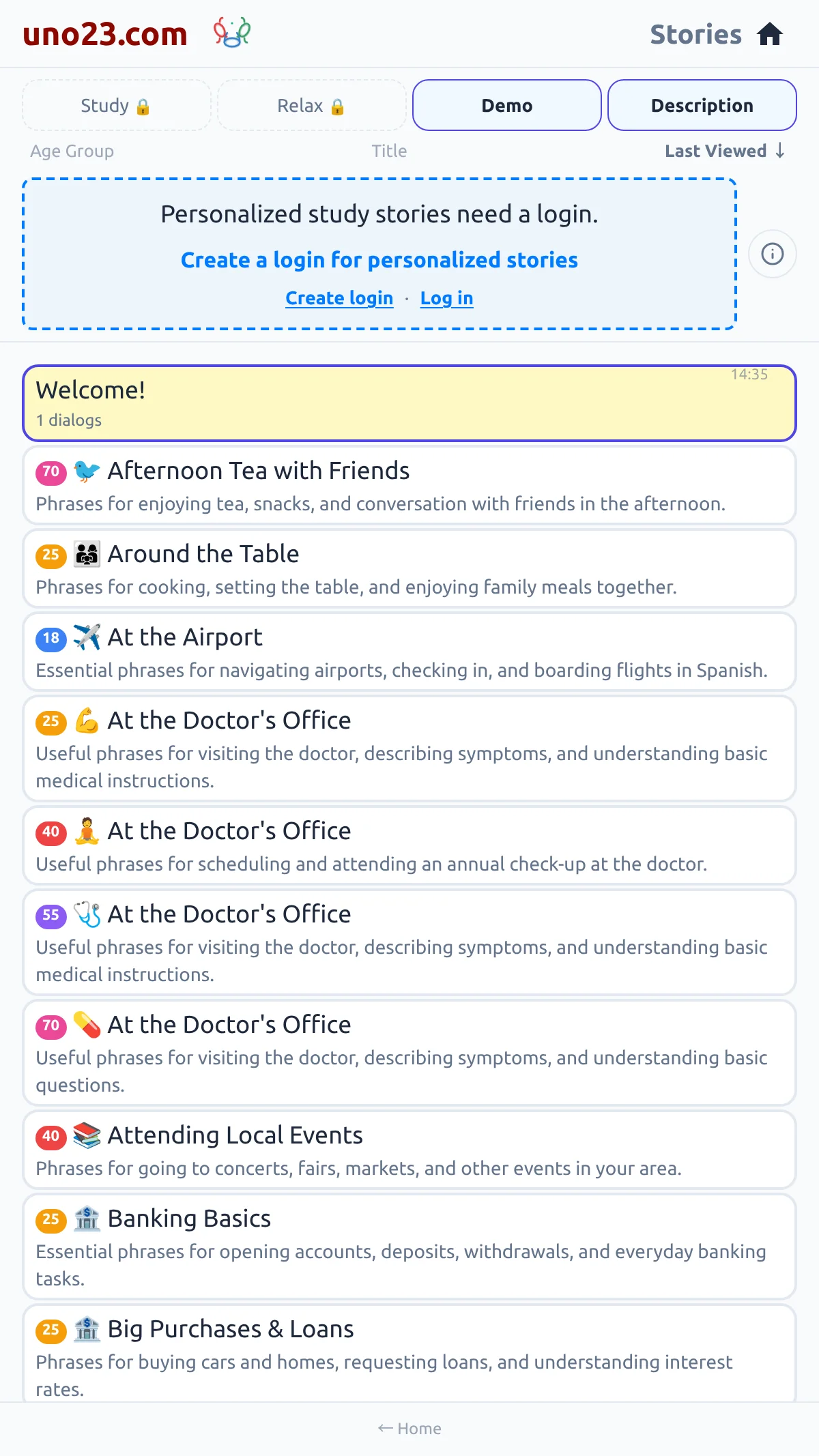
The Story List πŸ“‹ β€” a screen from the uno23.com app

The Story List πŸ“‹

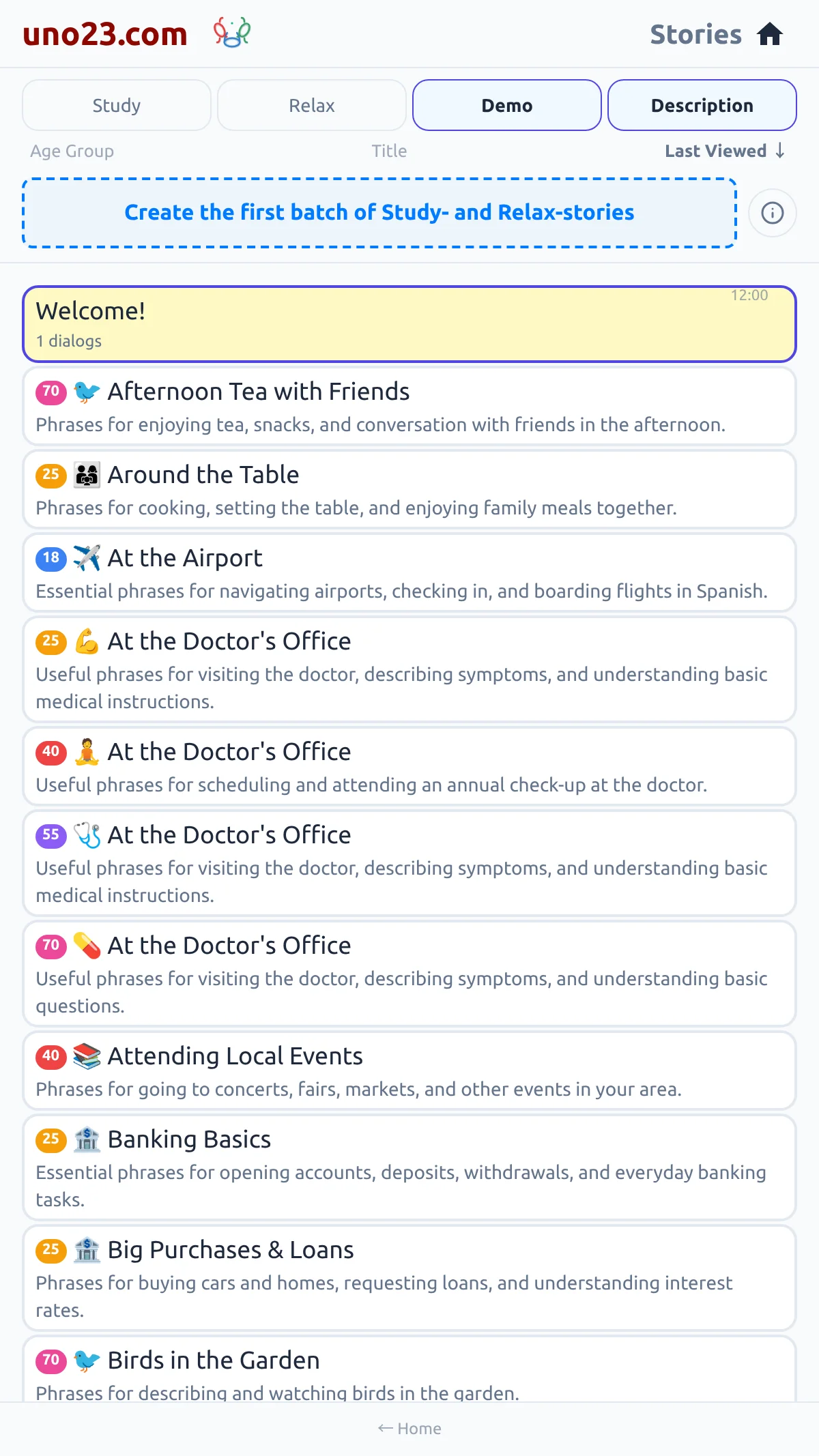
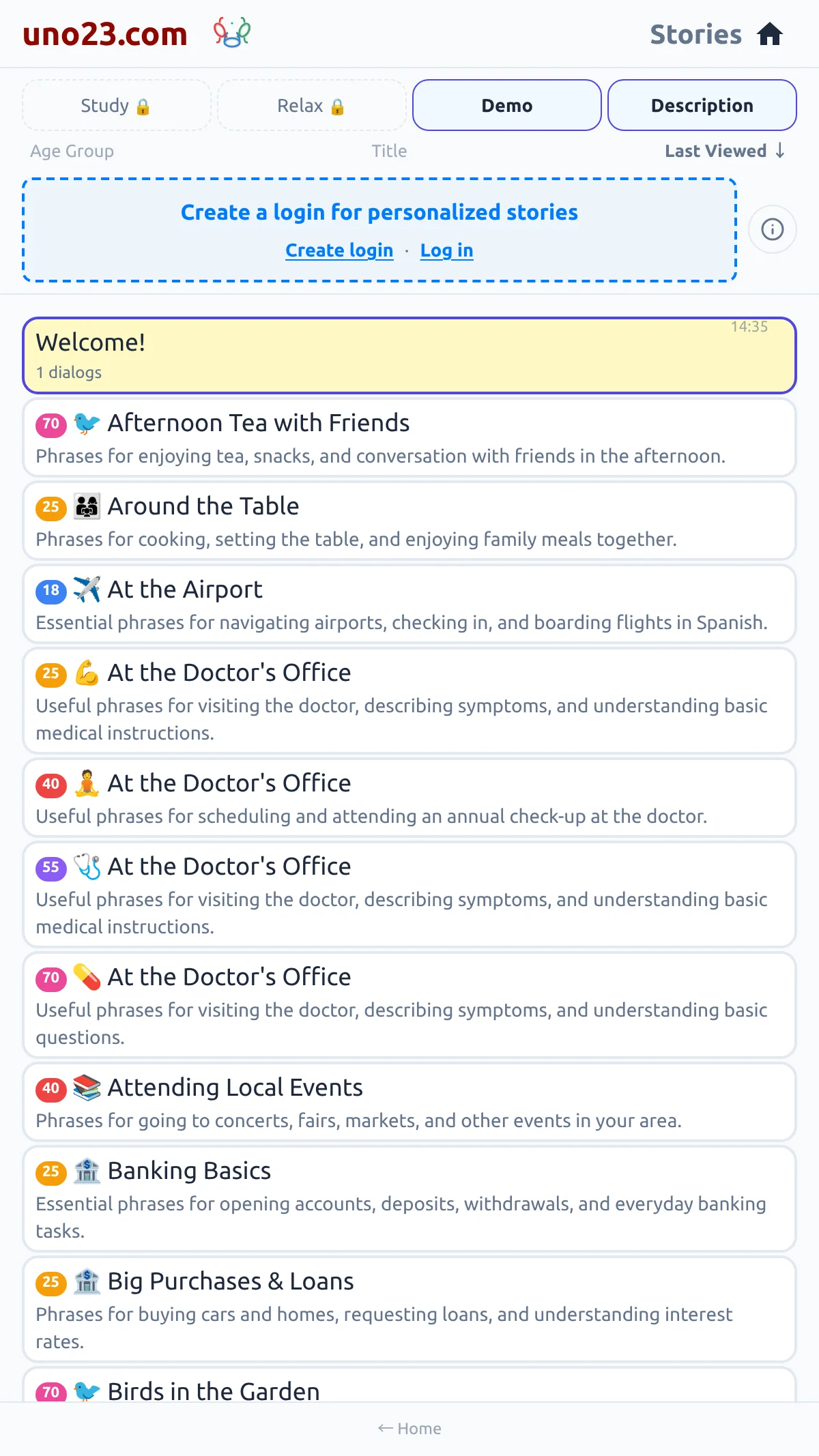
The story list is the panel on the far right. It holds every story you can read, one card each.

  • The chips, anonymous
  • Ordering the list
  • What a card tells you

English

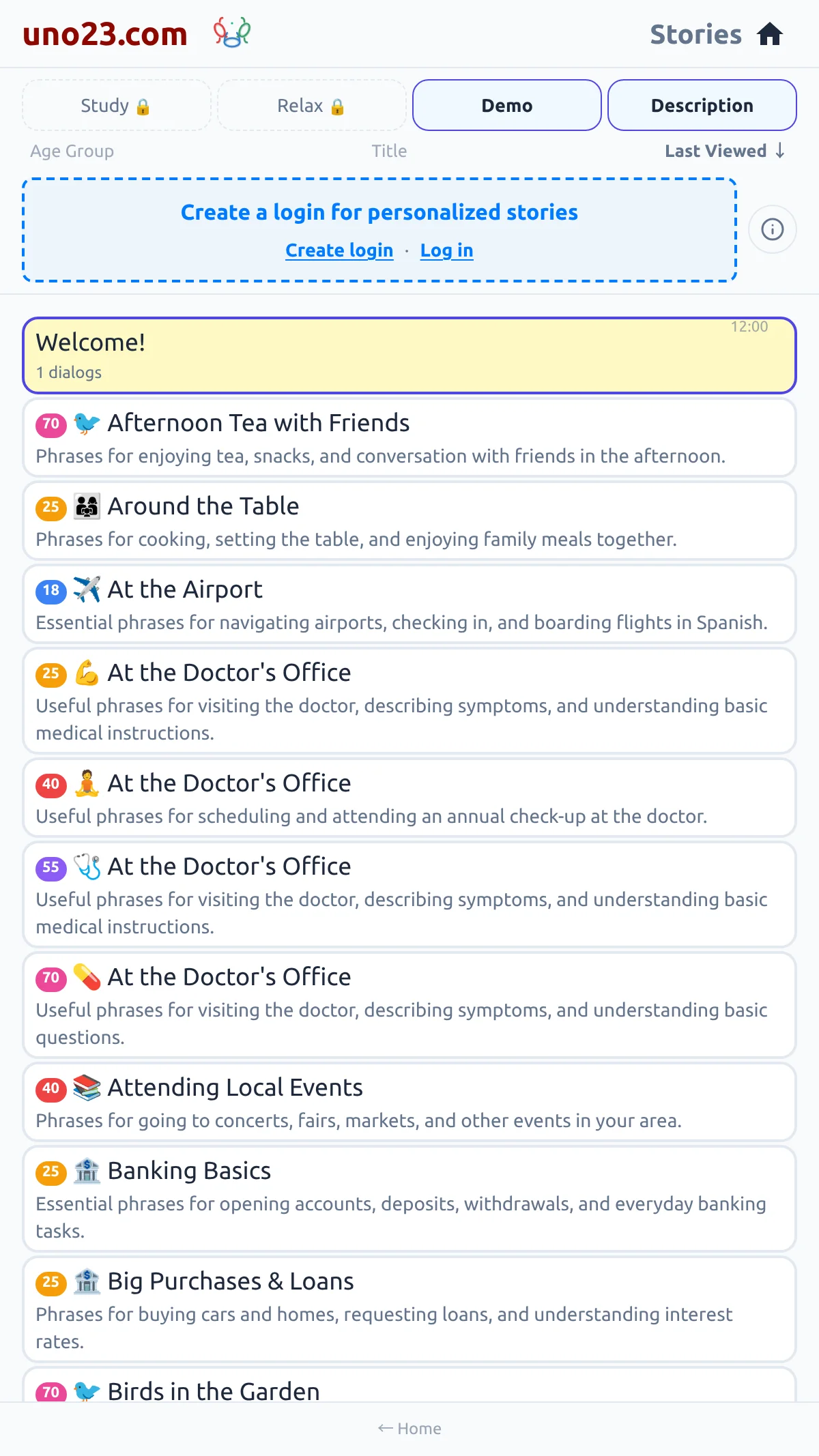
Story Types πŸ“š β€” a screen from the uno23.com app

Story Types πŸ“š

uno23.com has three kinds of stories, and each plays a different part in your learning.

  • What a visitor sees
  • The course, one topic at a time
  • The topic library

English

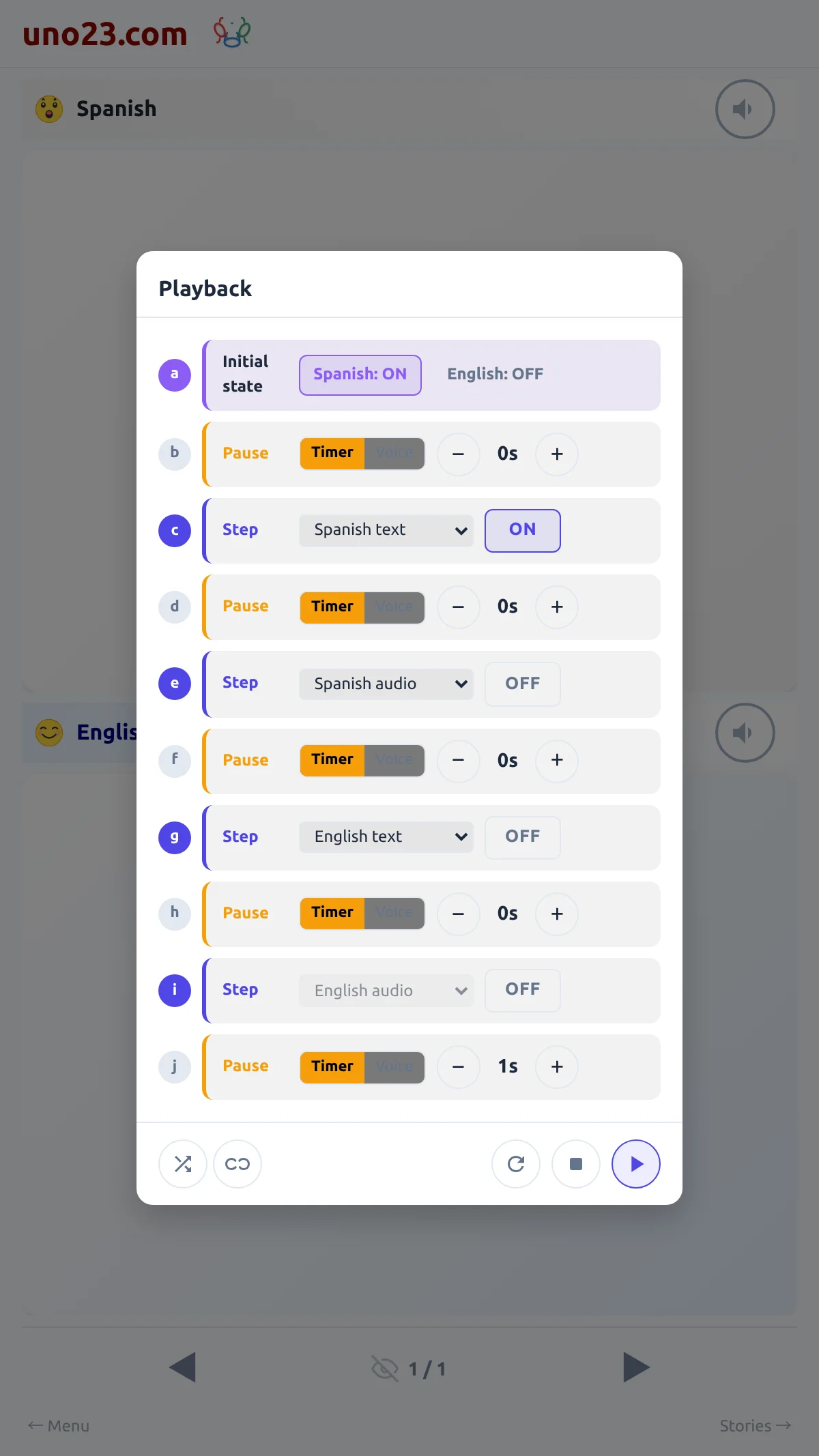
Playback πŸ”Š β€” a screen from the uno23.com app

Playback πŸ”Š

Playback walks through a story step by step, starting at the dialog you are on and running its sequence of actions to the end of the story.

  • The playback settings
  • A pause row set to listen
  • While it runs
  • A visitor β€” no Play button

English

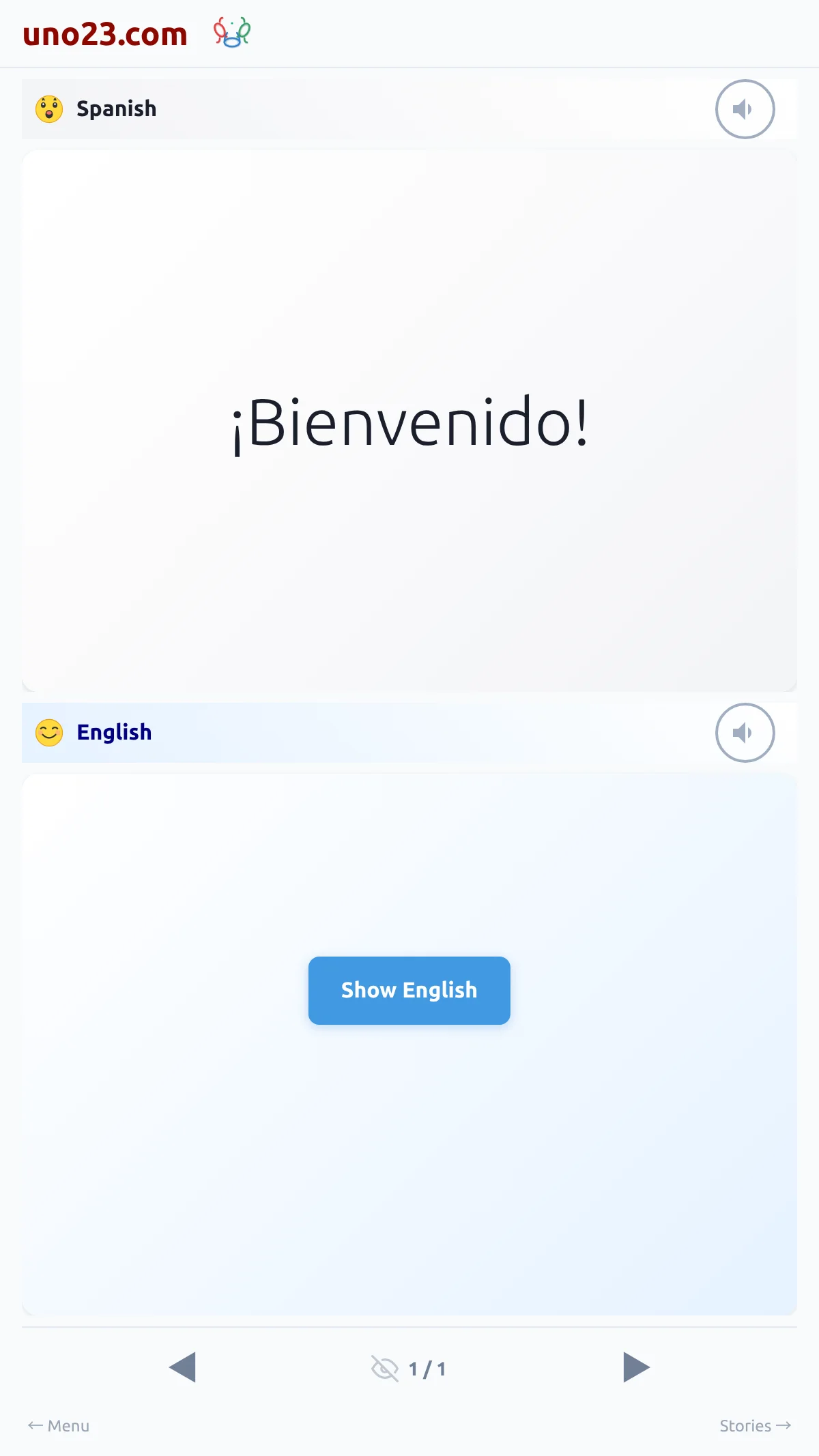
Showing the Translation πŸ‘οΈ β€” a screen from the uno23.com app

Showing the Translation πŸ‘οΈ

The eye button in the footer of the reading page controls whether your own language is shown automatically beside the text you are learning.

  • Hidden by default
  • The eye, open

English

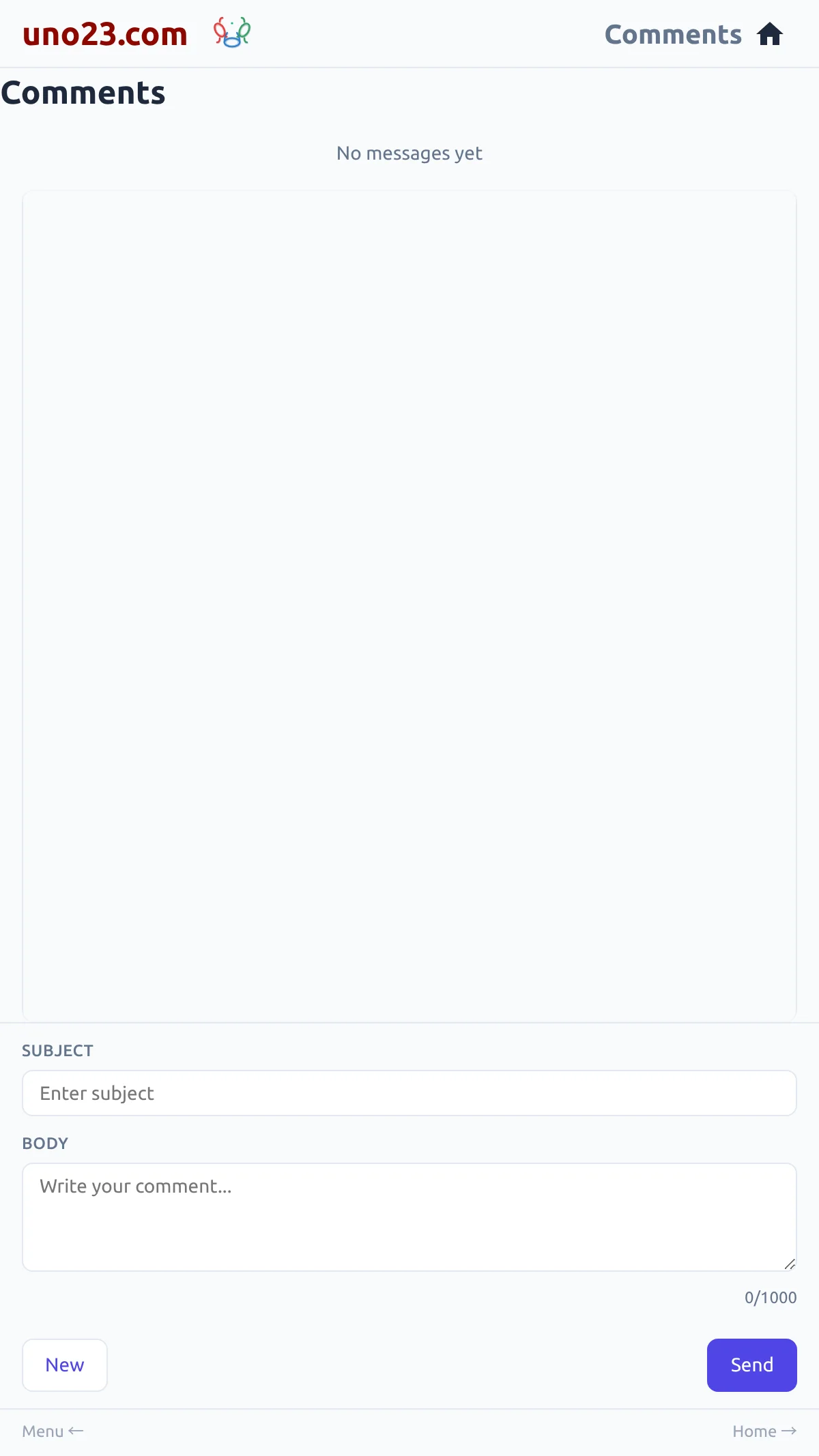
Comments πŸ’¬ β€” a screen from the uno23.com app

Comments πŸ’¬

Comments are a private line to the uno23.com team.

  • Writing a comment
  • Your own list

English

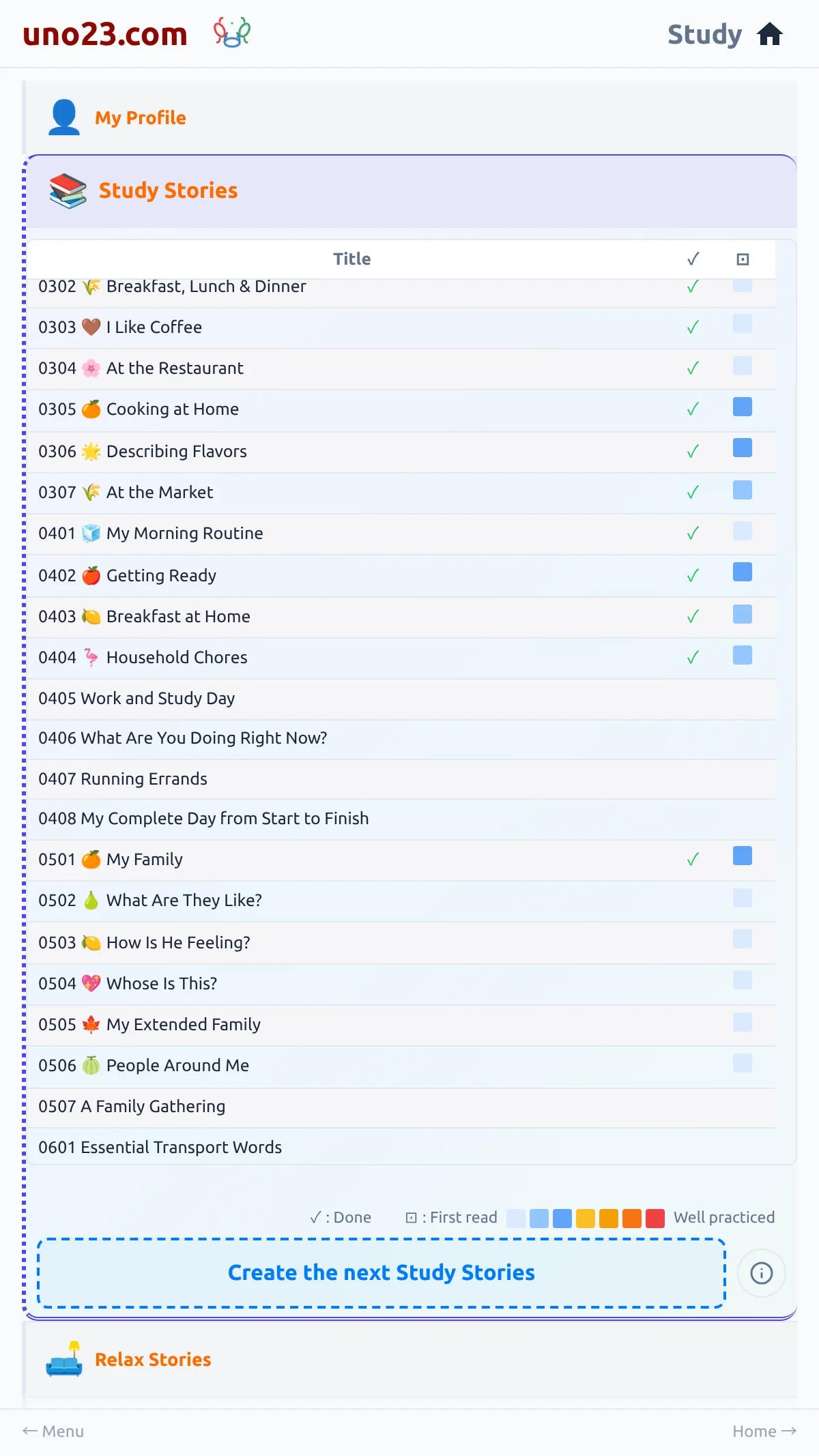
Study Stories Panel πŸ“˜ β€” a screen from the uno23.com app

Study Stories Panel πŸ“˜

Your course lives in the Studies page. Open it from the menu; the page holds four sections β€” My Profile , Study Stories , Relax Stories and Groups β€” and one of them is open at a time. Tap a section heading to open it.

  • The four sections
  • Ticks, plays, repeats
  • Setting your own level

English

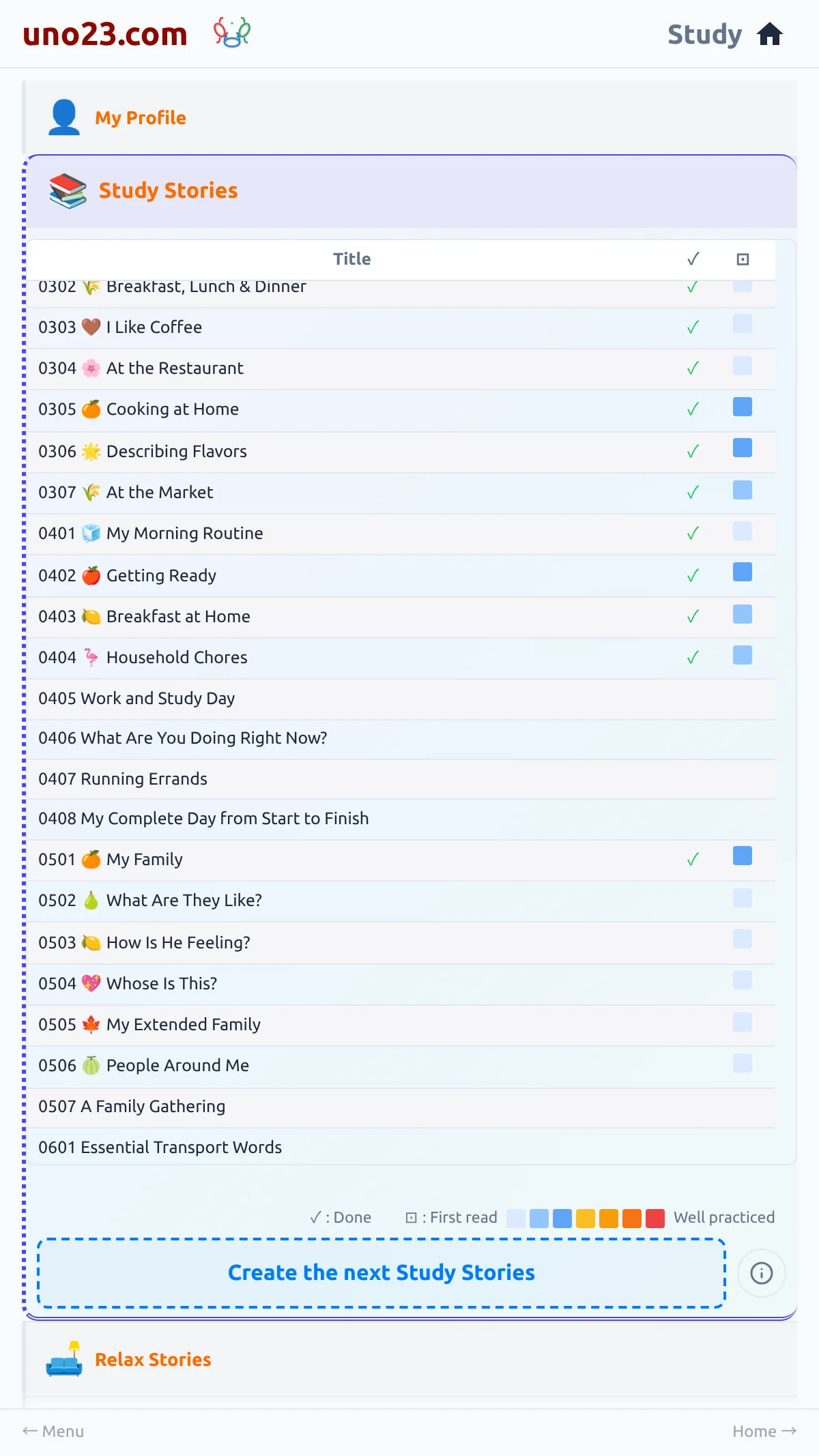
Creating Study Stories πŸ“˜ β€” a screen from the uno23.com app

Creating Study Stories πŸ“˜

The card Create the next Study Stories at the bottom of the Study Stories section adds your next leveled stories. You never pick the topic β€” the app works through the course in order and chooses what comes next. The only choice that ever appears is a standard or an extended story, and extended stories are a premium feature.

  • The Create card

English

Relax Stories Panel πŸ“™ β€” a screen from the uno23.com app

Relax Stories Panel πŸ“™

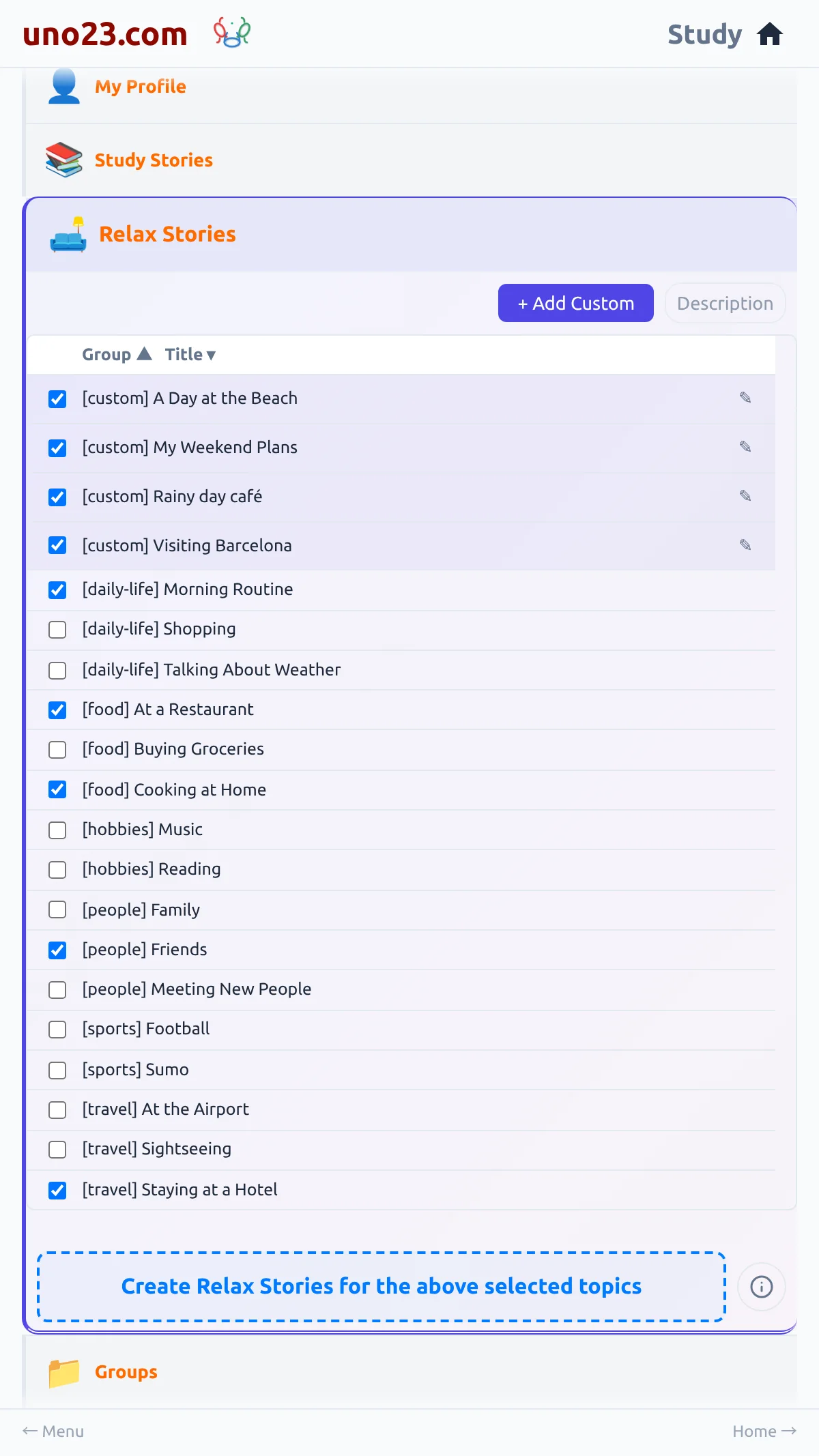
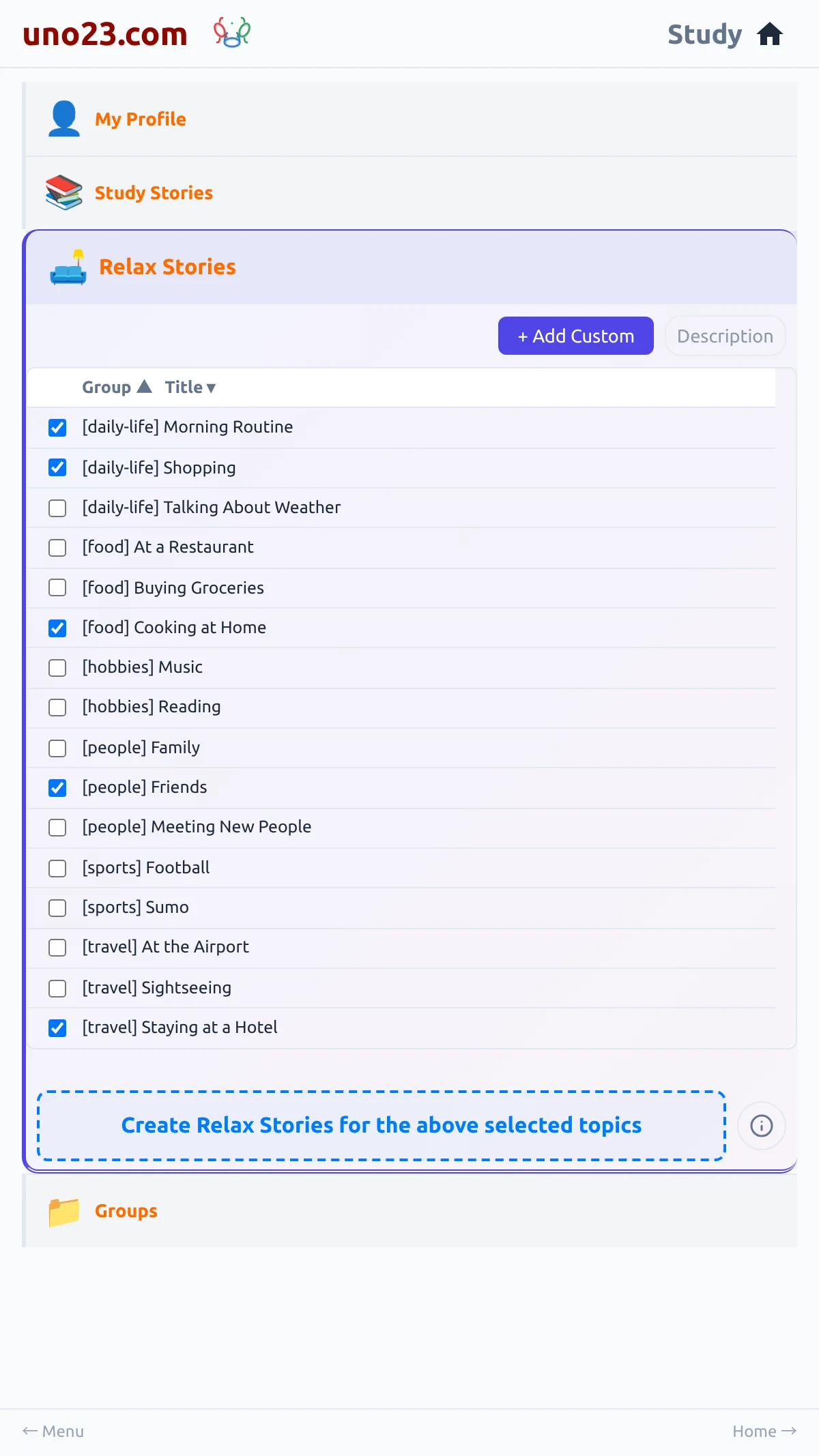
Relax Stories is the section of the Studies page directly below Study Stories β€” reading for pleasure, on subjects you pick. It has three parts: a top row with + Add Custom and a Description toggle, the list of topics with a checkbox each, and the card Create Relax Stories for the above selected topics at the bottom.

  • The panel
  • Sorting and descriptions
  • Nothing to configure
  • Study and Relax, side by side

English

Creating Relax Stories πŸ“™ β€” a screen from the uno23.com app

Creating Relax Stories πŸ“™

The card Create Relax Stories for the above selected topics writes a story for every topic you have ticked above it, including any topics you added yourself with + Add Custom .

  • Ticking topics
  • The card, before the press
  • Nothing ticked

English

Generating a Batch of Stories πŸ“¦ β€” a screen from the uno23.com app

Generating a Batch of Stories πŸ“¦

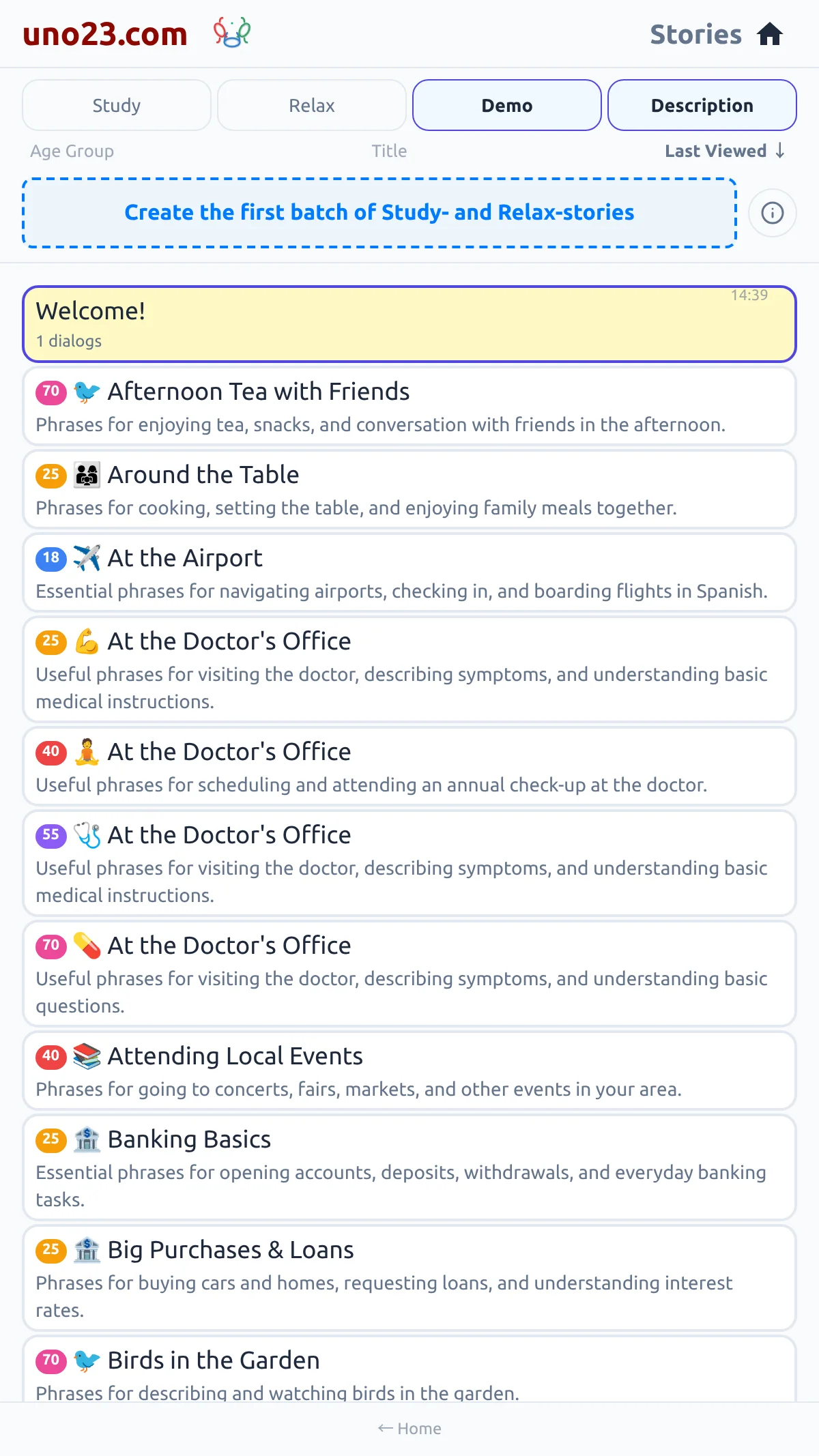
The card at the top of your story list creates several stories at once. It sits above your story cards and appears once you are logged in. Depending on what you already have, its button reads:

  • The very first batch
  • The next batch
  • Add new Relax stories

English

Panel Groups πŸ‘₯ β€” a screen from the uno23.com app

Panel Groups πŸ‘₯

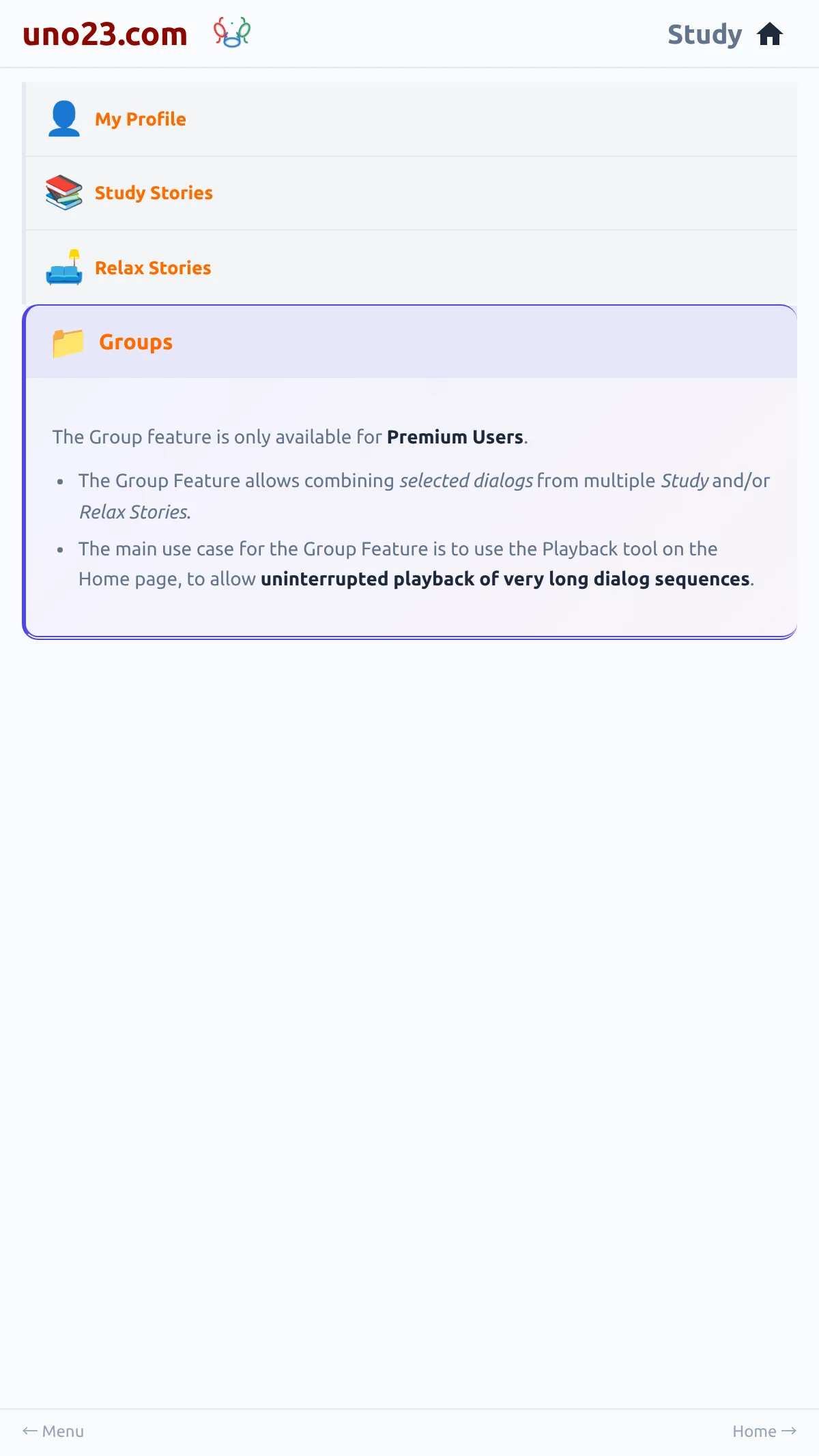
Panel groups let you hand-pick individual dialogs from several of your stories and play them back as one long sequence. They are a premium feature, and they are saved to your login.

  • What a free login gets
  • Naming a group

English

Languages 🌐 β€” a screen from the uno23.com app

Languages 🌐

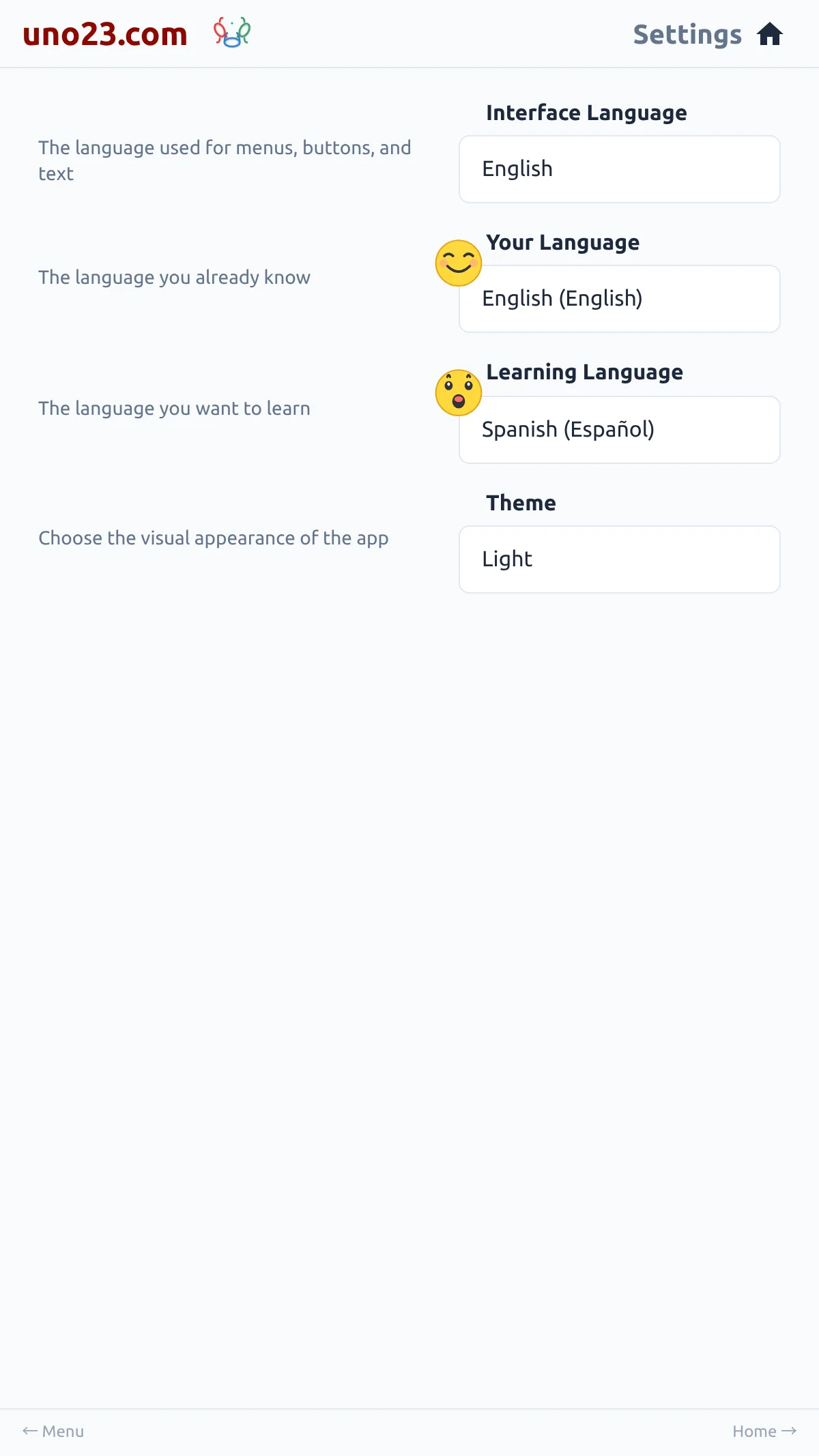
You read in two languages at once: the one you already know and the one you are learning.

  • The three rows
  • Nine interface languages
  • Eight to learn β€” Hindi is not one

English

Logins πŸ” β€” a screen from the uno23.com app

Logins πŸ”

A login holds your stories, your level and your credits, so you can pick up where you left off on any device.

  • What a login gives you
  • Username and password
  • Logging in and out

English EspaΓ±ol Deutsch FranΓ§ais Italiano PortuguΓͺs ζ—₯本θͺž Dansk ΰ€Ήΰ€Ώΰ€¨ΰ₯ΰ€¦ΰ₯€

My Profile πŸ‘€ β€” a screen from the uno23.com app

My Profile πŸ‘€

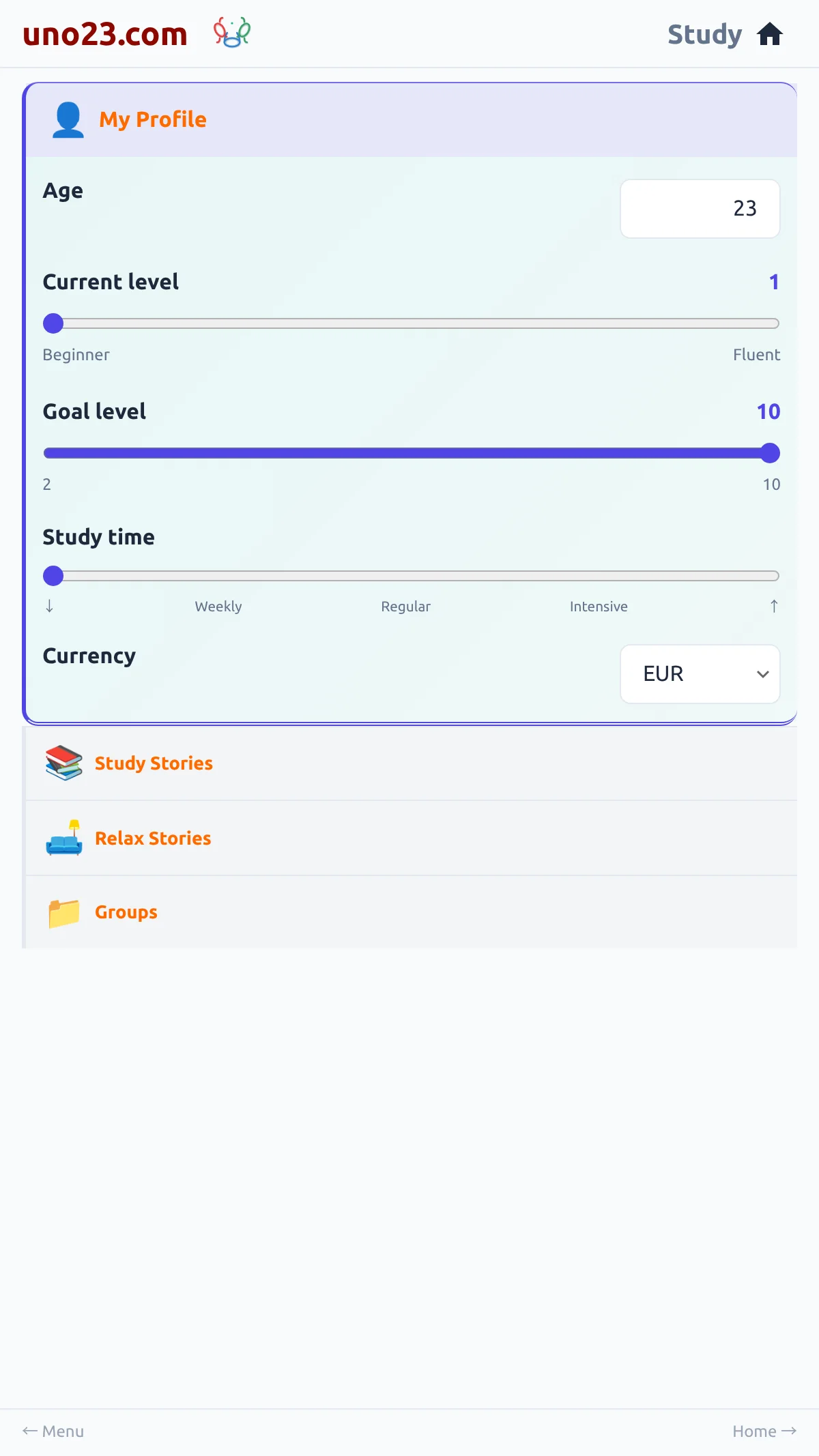
My Profile is the first section of the Studies page, and it is where the app learns what "your level" means for you. It holds five settings:

  • The profile panel
  • The course the level orders

English

Recovery Email πŸ“§ β€” a screen from the uno23.com app

Recovery Email πŸ“§

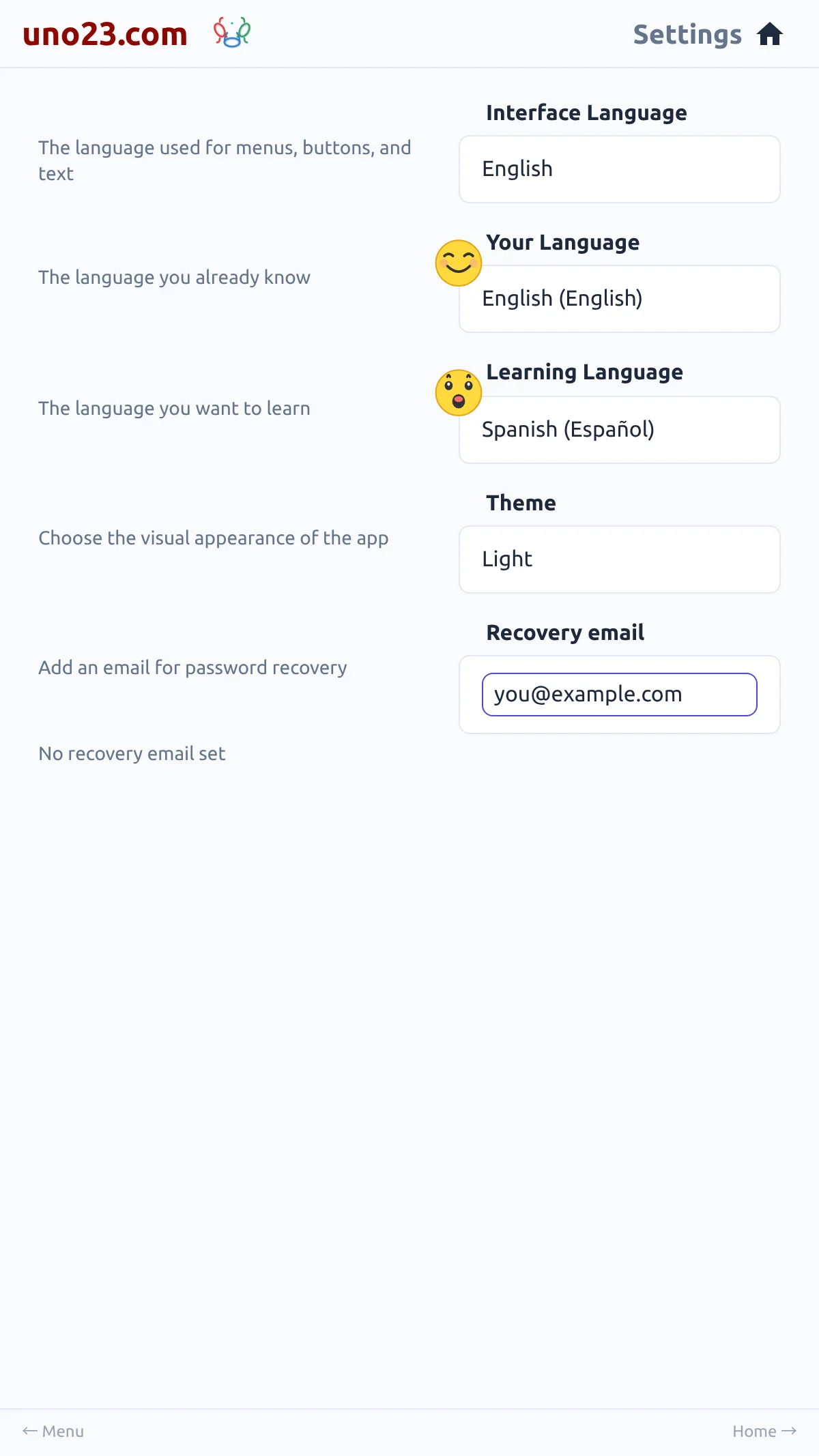
A recovery email is optional β€” the app works without one. If you add one, it is used to confirm the address itself and to reset your password if you forget it, and for nothing else.

  • Where the address goes
  • Forgot password β€” username only

English

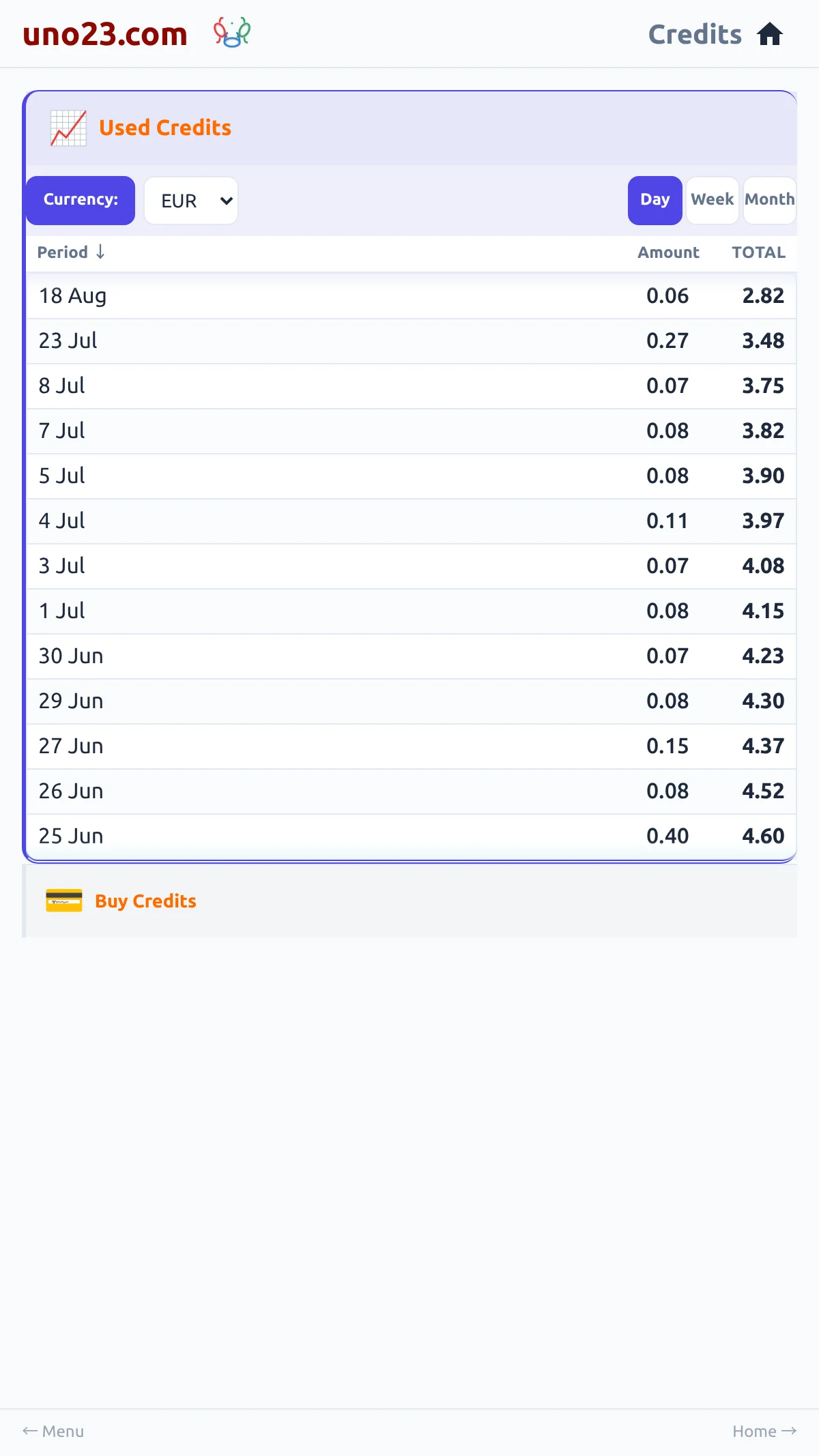
Costs and Credits πŸ’° β€” a screen from the uno23.com app

Costs and Credits πŸ’°

Creating a story uses credits. Listening to one does not. Every login receives 100 free credits when it is created.

  • Balance and packages
  • Premium β€” the settings it adds

English

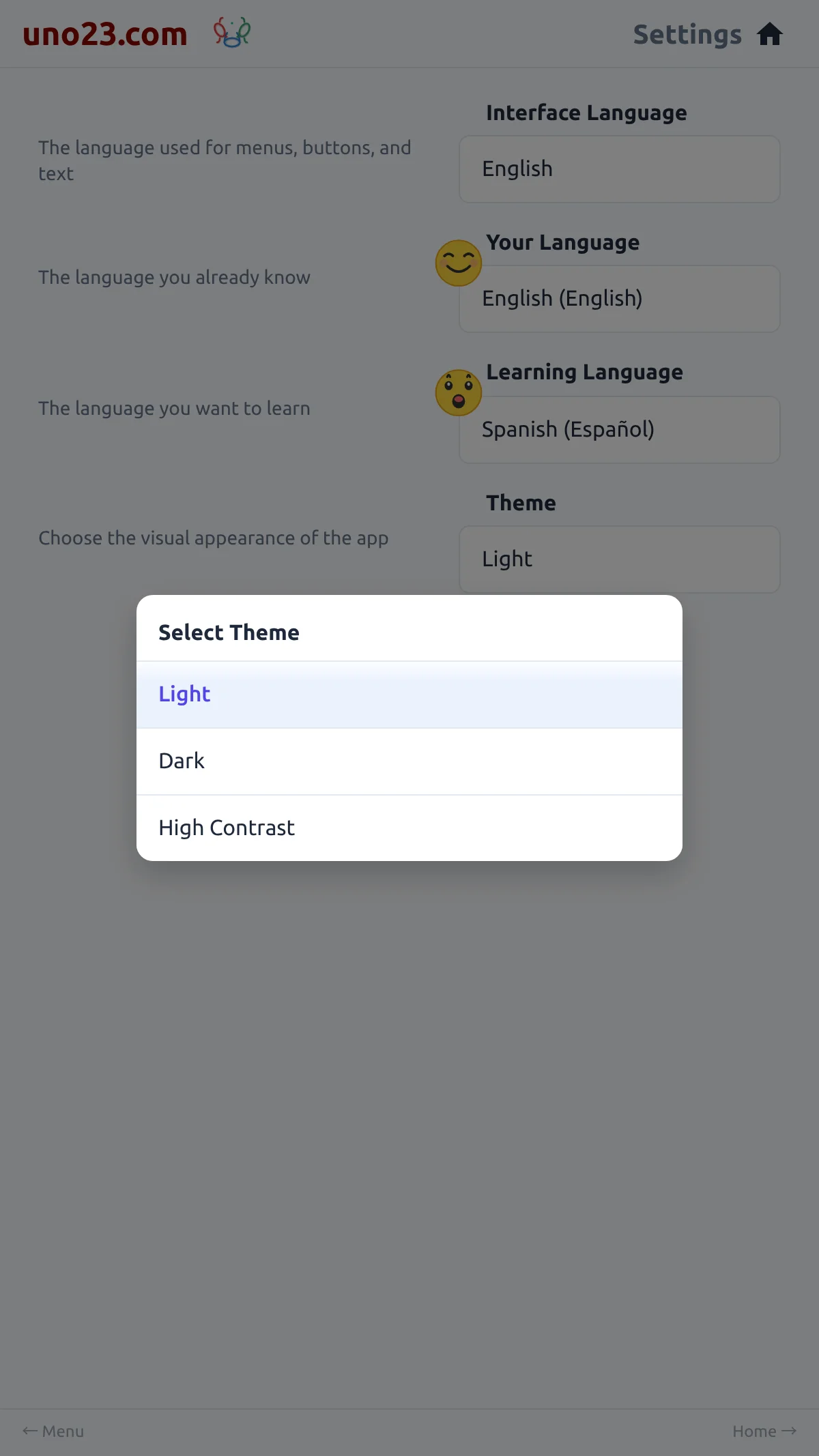
Themes 🎨 β€” a screen from the uno23.com app

Themes 🎨

uno23.com comes in three themes.

  • The picker
  • Light β€” the story list
  • Light β€” reading a story
  • Dark β€” the story list

English EspaΓ±ol Deutsch FranΓ§ais Italiano PortuguΓͺs ζ—₯本θͺž Dansk ΰ€Ήΰ€Ώΰ€¨ΰ₯ΰ€¦ΰ₯€

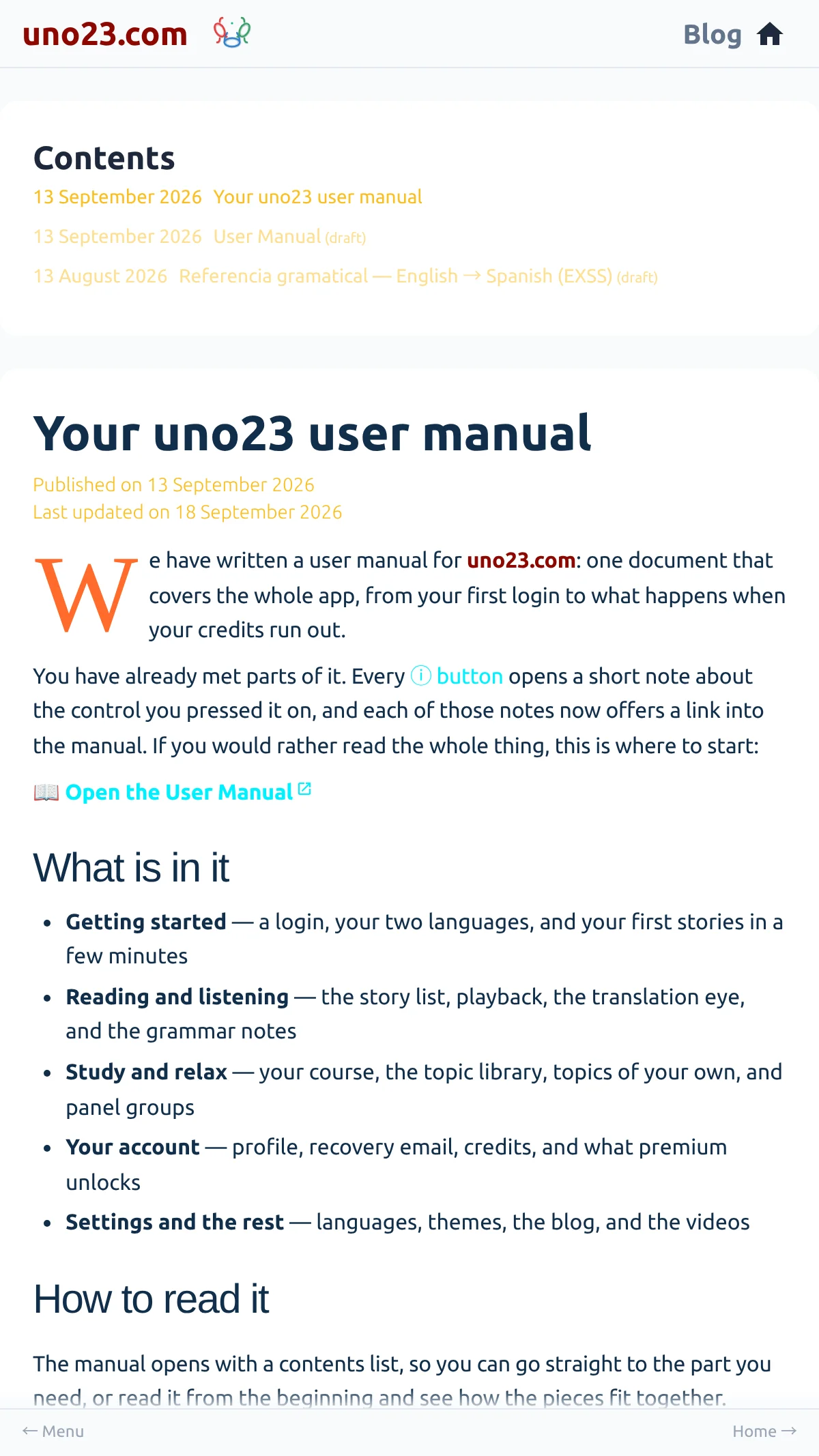
Blogs πŸ“ β€” a screen from the uno23.com app

Blogs πŸ“

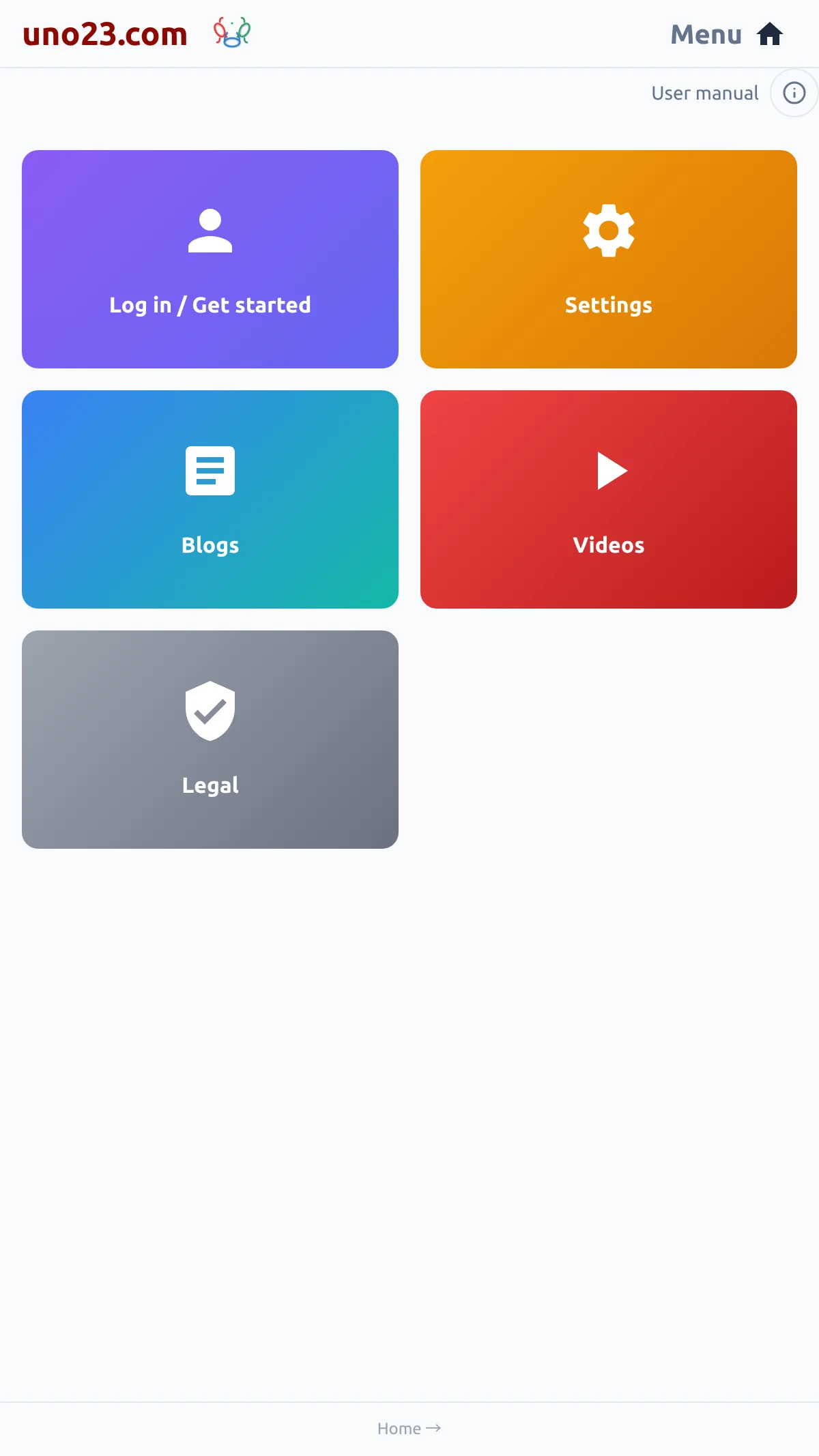
The blog is where uno23.com posts announcements, updates and learning tips. Open it from the Blogs card on the menu; the page itself is headed Blog .

  • The contents block
  • An article, in your language

English

Videos 🎬 β€” a screen from the uno23.com app

Videos 🎬

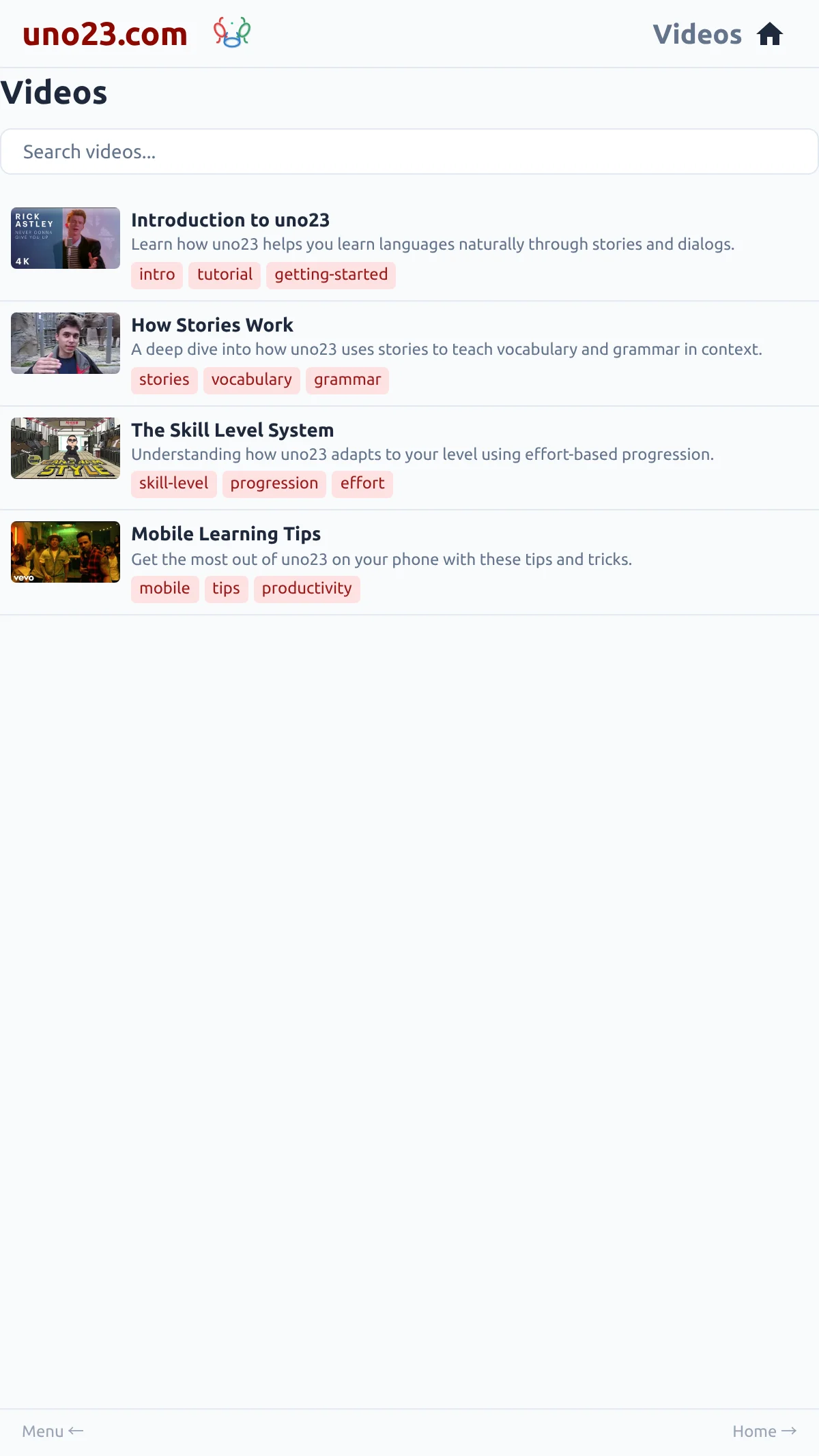
The Videos page collects short clips about using uno23.com . It is on the menu, and it is open to everyone β€” you do not need a login to watch.

  • The archive

English

Chat πŸ’­ β€” a screen from the uno23.com app

Chat πŸ’­

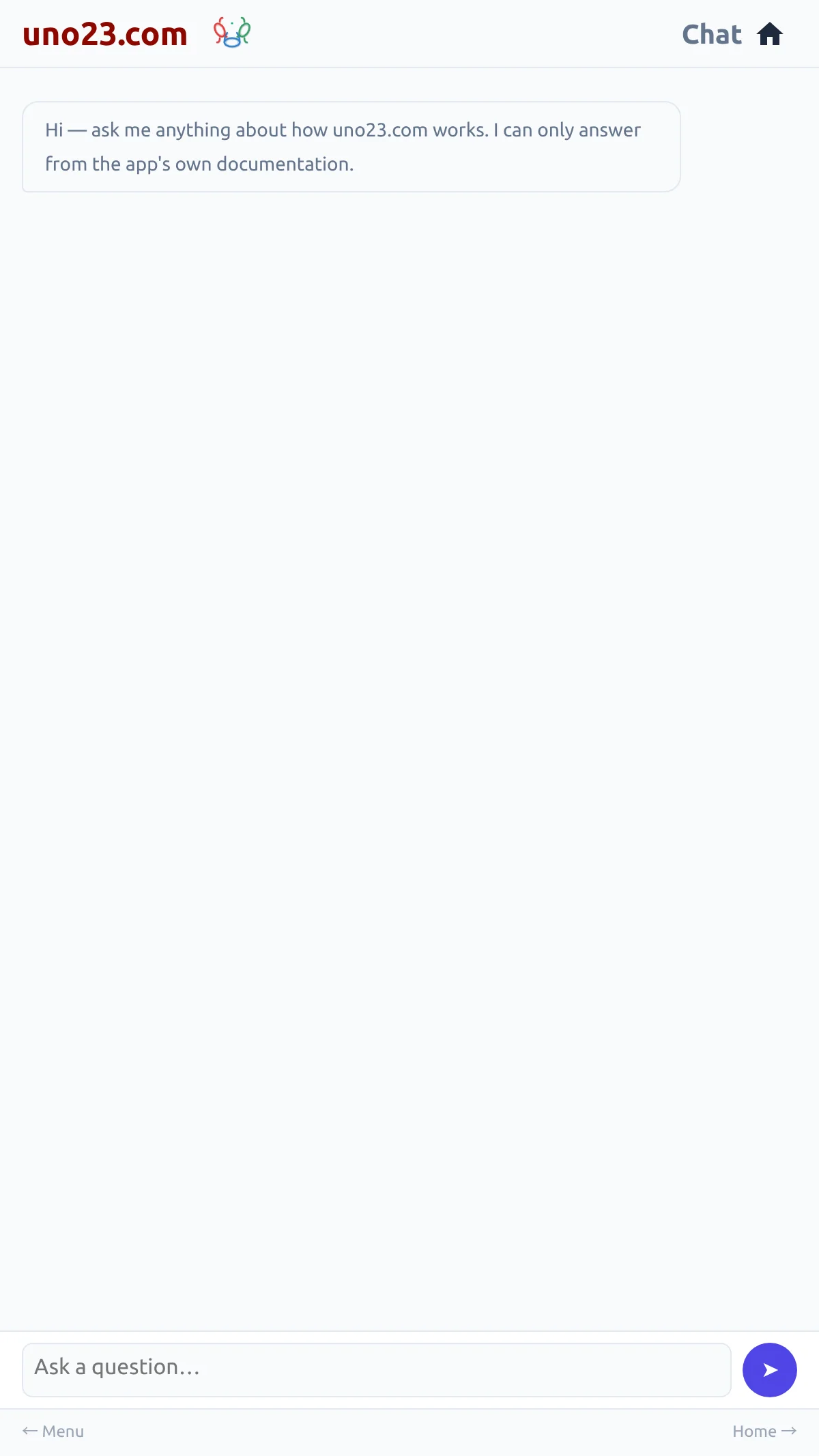
Chat is the panel where you can ask a question about uno23.com in your own words and get an answer written from the app's own documentation.

  • The question box
  • Between Comments and Legal
  • The setting, off until you turn it on

English

Appendix: Feature Comparison βš–οΈ β€” a screen from the uno23.com app

Appendix: Feature Comparison βš–οΈ

uno23.com comes in three plans, and each one builds on the last. The first is free and needs no login at all. The second is a free login that includes 100 credits β€” it adds your own stories, playback, comments, credits and the Chat panel. Premium is the third, and it is what a login becomes, once it has bought 1,000 credits in total: it adds the extended study stories, panel groups, and multiple language pairs and more.

  • No login
  • A free login
  • Premium

English