Adding one
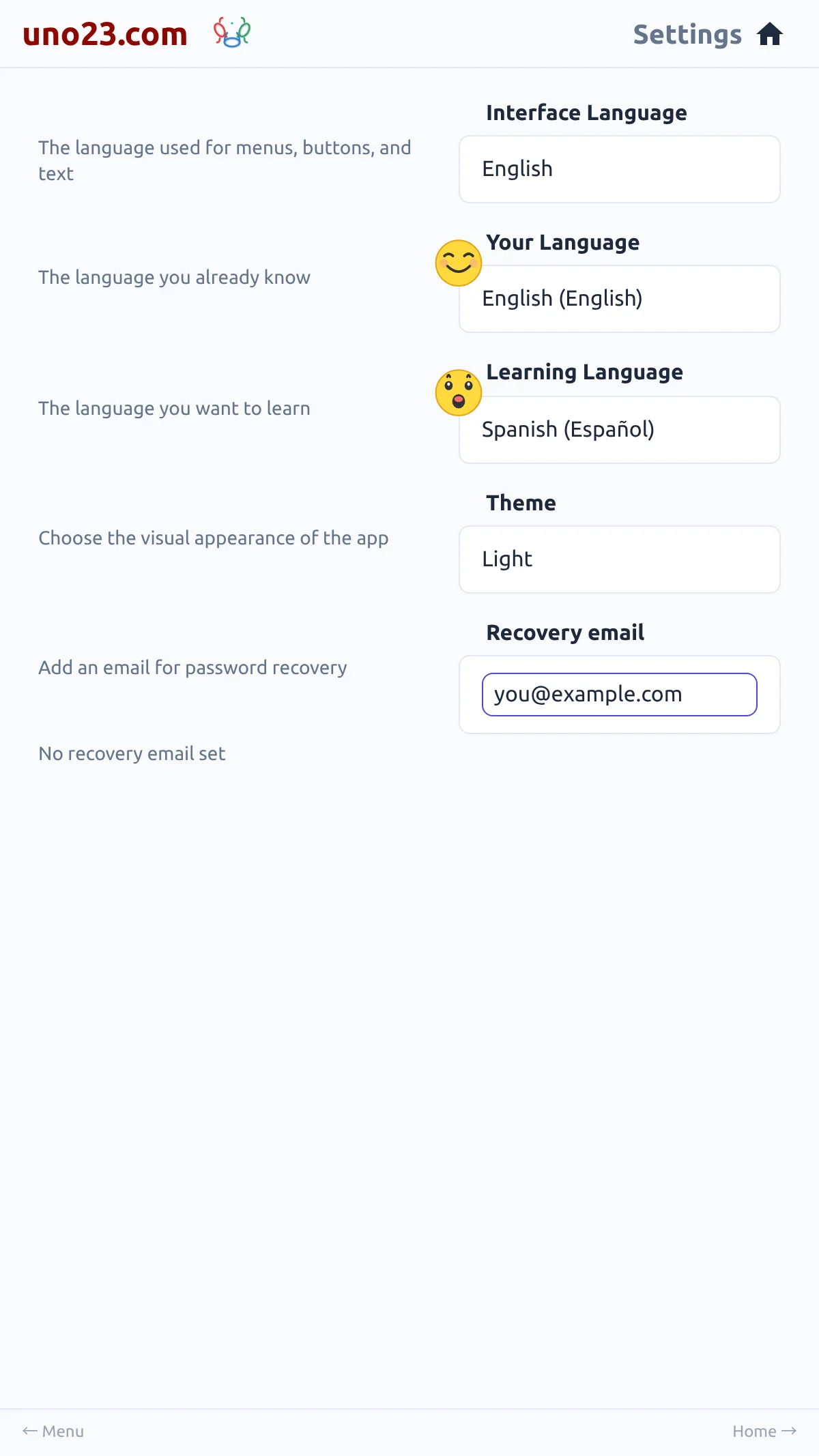
The Recovery email row is in Settings. Tap it and enter an address; a status line shows whether it is verified. While an address is there but unverified, a Verify email address button appears — pressing it sends a fresh link to that address, and opening the link marks it verified. Clearing the field removes the recovery email.
Changing the address un-verifies it again, so the confirmation link has to be opened once more.
Where the address goes
Using it to reset a password
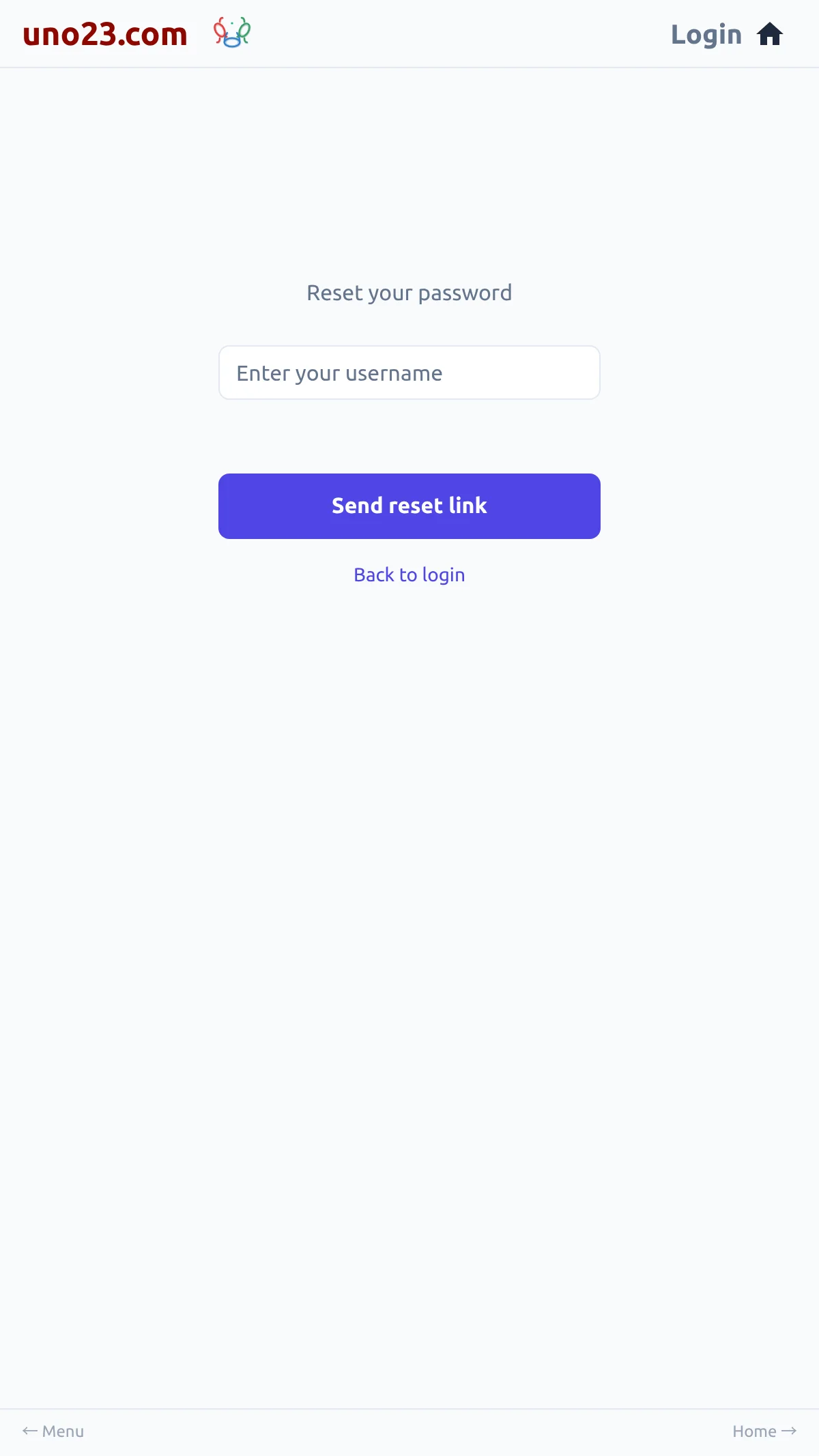
- On the login page, follow Forgot password? and enter your username.
- A reset link is sent to your recovery email, if the login has one.
- Open the link to reach the Set new password form.
A completed reset logs you out everywhere. Once you set the new password, every device that was logged in — including the one you are using — is logged out, and you will need to log in again on each of them.
Forgot password — username only